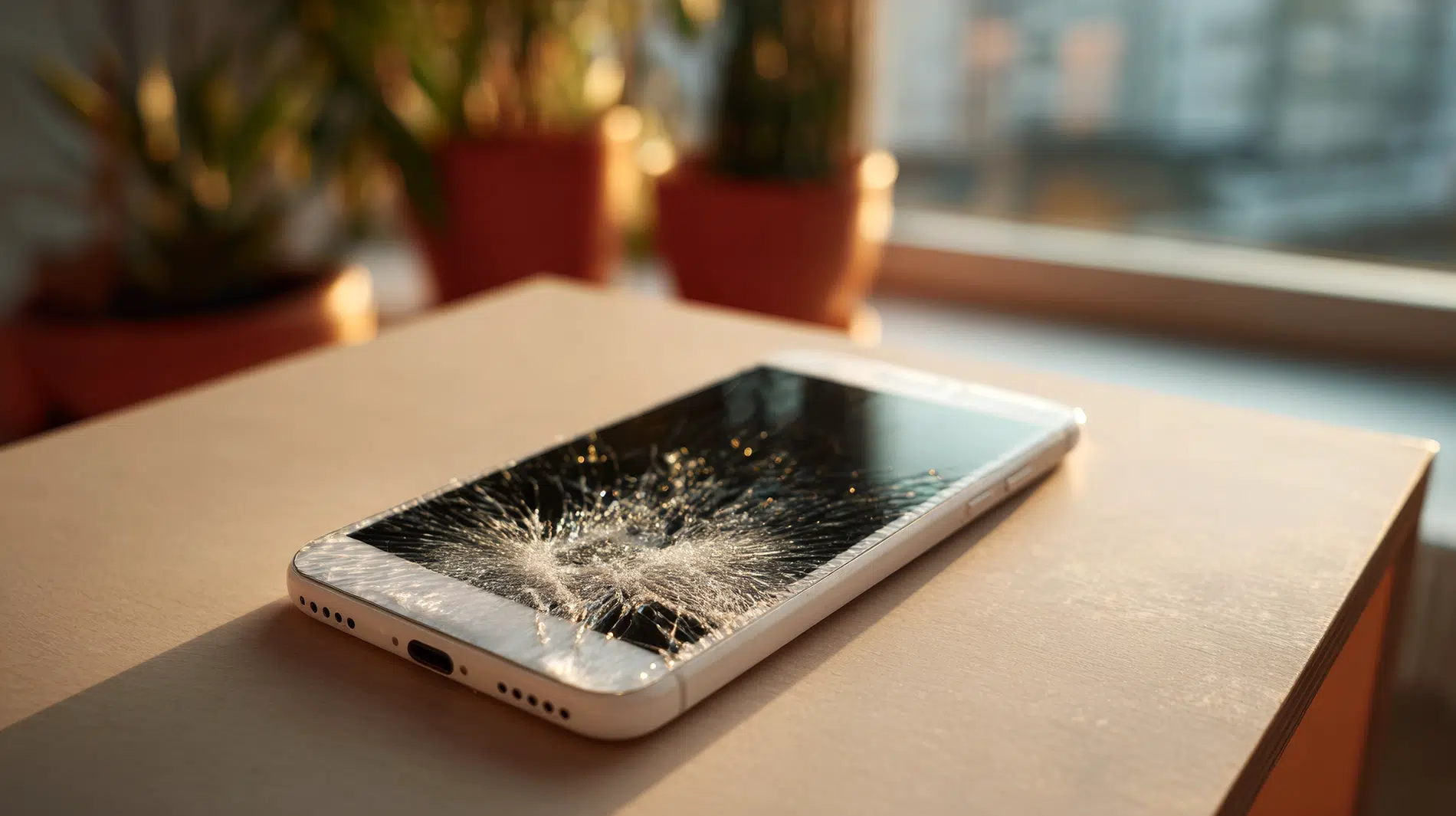
Although a broken Samsung screen feels final, your data remains safe inside. Many users panic when touch stops working, thinking photo files are gone forever. In reality, recovery depends on power status, connection ability, and the correct approach. Some situations allow simple cloud restores, while others need careful steps before repairs.
Hence, this guide explains safe options, helping non-technical users avoid risky decisions. It shows where tools like Dr.Fone Android recovery software fit when access is blocked. Apart from that, you will learn when to recover first, repair later, and protect data.
Part 1. Identify Your Samsung Broken Screen Type for the Right Recovery
Before choosing any method, you must understand what kind of screen damage exists. Different Samsung screen failures affect access and broken phone data recovery. Some screens show visuals but fail touch, while others block power and connections. The table below explains common Samsung broken screen types for suitable recovery directions:
| Broken Screen Type | What Happens | Can Phone Power On | Recovery Possibility | |
| Cracked Glass Only | Display works, touch responds, glass damaged | Yes | High | |
| Touch Not Working | Screen is visible, but touch input fails | Yes | Medium | |
| Black Screen | No display, but the phone vibrates or rings | Yes | Medium | |
| Boot Failure | Phone stuck on the logo or not starting | No | Low | |
Part 2. Recover Data from a Samsung Phone Using Google Backups and Cloud Sync
When a broken screen blocks access, your Google account may still help recover data. Cloud sync supports Samsung broken screen data recovery without touching the damaged phone. Moreover, photos and other data may still be restored from your Google account. So, the sections below show which Google services help and when each works:
1. Restore Data from Google Sync
Google Sync keeps most of your Samsung data ready to restore anytime you sign in. Your contacts, calendar, photos, and app data update automatically in the background. Even if your screen no longer responds, your synced items remain linked to your account. Users can check sync settings through another working phone to restore data. Thus, adhere to the steps below to restore synced data from your Google account:
Instructions. Access “Settings” on your working phone and open the “Accounts” section. Choose “Google” to sign in with the same account used on the damaged phone. Following this, enable the syncing for the data you want to restore.
2. Restore Data from Google Backup
Backup also saves your Samsung phone’s important data to your Google account. Even with a broken screen, this backup enables safe broken phone data recovery. You can restore everything during a new phone setup after signing into your Google account. This method avoids touching the damaged phone directly, reducing the risk of data loss. The following steps show how to access Google Backup and recover your important content:
Step 1. During setup, tap “Next” on the “Copy Apps & Data” screen. Then, choose “Can’t Use Old Device” and sign in with your Google account credentials.
Step 2. When the backup list appears, pick the most recent one of your broken phone. Choose the data you want to restore, then tap “Restore” to finish the process.
Part 3. When You Need Broken Phone Data Recovery Tools
When your Samsung phone becomes unresponsive, regular recovery steps may no longer work. That’s when specialized tools step in to help recover valuable stored information. They extract files even when the screen or touch function completely fails. Solutions like Dr.Fone Android Recovery software simplify this process with guided device handling. Below are key reasons and cases where using recovery tools becomes essential:
- Locked Screen: A security lock may block you from retrieving data through backup channels. Recovery tools can bypass these barriers while preserving your important stored files.
- Dead Touch: When touch input fails, you lose access to normal on-screen controls. Such tools simulate external access methods that can extract internal data.
- Boot Loop: A phone stuck in a loop on startup prevents reaching your internal settings or storage. Recovery utilities help break the loop while recovering uncorrupted stored data.
- System Crash: Corrupted firmware may cause system failure and make your screen unresponsive. These tools rebuild readable partitions, restoring lost content that backups failed to capture.
- Black Display: Many times, a black display hides your data even when the phone functions. Yet, recovery software communicates with internal memory to extract readable file formats.
Part 4. How Dr.Fone Android Recovery Helps with Samsung Broken Screen Data Recovery
When normal recovery fails, users need a trusted option that supports every broken Samsung. That’s where Dr.Fone – Data Recovery (Android) becomes a complete solution for damaged devices. It retrieves data from phones with dead screens, black displays, or boot failures. The tool supports more than 6000 Android devices from top global phone brands. You can scan and preview recoverable files in real time before full restoration.
Moreover, Dr.Fone Android recovery software recovers 14+ types of data without risking the other data stored in your phone. Its local data processing ensures full security, keeping personal files safe during extraction. This tool also supports data access even when USB debugging and screen control are disabled. It even lets you perform selective recovery, allowing you to restore only what truly matters most.
Key Features
- View Once: Recover WhatsApp “View Once” media even after they disappear from chats.
- High Success: Achieves the highest data recovery success across all Android screen damage cases.
- No Backup: Recover deleted data even when no Google or device backup exists.
Tutorial to Recover Samsung Broken Screen Data via Dr.Fone
Go through the given guide to use this dedicated broken phone data recovery tool for recovering data from your Samsung:
Step 1. Open Broken Phone Recovery Mode
Run Dr.Fone and go to the “Toolbox” tab, then select “Data Recovery.” Choose “Android” and click “Recover from Broken Phone” to begin.
Step 2. Confirm Your Samsung Condition
Here, select “Display Still Works, But the Screen Is Broken or Unresponsive.” After that, press “Next” to connect your device, then click “OK.”
Step 3. Restore Data from Broken Samsung Phone
Upon doing this, let the tool install the necessary drivers automatically. When you see a small prompt, click “Yes, It Works” to recover your files.
Part 5. Repair First or Recover First? Choosing the Safest Path
Deciding whether to repair or recover first depends on device condition and urgency. Samsung broken screen data recovery requires careful planning to avoid permanent data loss. Sometimes, quick repairs risk overwriting important files, while recovery first preserves critical data. Anyhow, use the comparison table below to choose your best recovery strategy:
| Situation | Repair First | Recover First | Recommended Path |
| Working but Unresponsive | Repair may overwrite data during troubleshooting | Safer to extract data before repair | Recover First |
| Partial Display Function | Limited access still available for backup | Extract data while the screen still responds | Recover First |
| Completely Dead Screen | Repair not required before attempting PC recovery | PC recovery modes may still detect the device | Recover First |
| Boot Failure + Valuable Data | Repair success uncertain | Attempt data extraction tools before hardware repair | Recover First |
| Minor Crack, Full Function | Screen replacement is simple | Data already accessible and can be backed up | Repair First |
| Water Damage + Urgent Need | Damage may worsen rapidly | Immediately extract data before device failure | Recover First |
| Old Device, Low Data Value | Repair cost exceeds device value | Recover important files then replace device | Recover First |
Conclusion
To sum up, a broken Samsung screen doesn’t mean losing all your data forever. This guide showed safe ways to recover data using native methods and smart tools. Still, always check your phone type first, then pick cloud options or software extraction steps. When normal access fails, recovery tools handle locked screens and dead displays. For reliable results with broken devices, try Dr.Fone Android recovery software right away.